
Thursday, 15 November 2012
Background

Sprite
 I have decided on a car racing game and found this image on google, of an overhead veiw of a car.
 I edited this to make my own sprite. I made a blue and yellow one, by simply painting over these silver ones using the Fill tool (to fill areas with colour or gradient) and the Eraser tool.
The main car will be a silver one, but the obstructing vehicles will be in such colours.


Wednesday, 14 November 2012
Game Ideas
This website had many helpful sratch games.
http://nebomusic.net/scratch.html
There were many ideas which made it easier for me to choose a game. Some of the ideas that I want to make my project out of is:
- Car Racing. In this the user controls the car with the arrow keys for direction and speed. A simulated road with a striped line down the center showing "speed" and "motion" of car. There will be obstacles which the car must avoid.e.g. puddles, other cars. There will be a timer and as the player progresses up to each level the time is shorterned.
http://nebomusic.net/scratch.html
There were many ideas which made it easier for me to choose a game. Some of the ideas that I want to make my project out of is:
- Car Racing. In this the user controls the car with the arrow keys for direction and speed. A simulated road with a striped line down the center showing "speed" and "motion" of car. There will be obstacles which the car must avoid.e.g. puddles, other cars. There will be a timer and as the player progresses up to each level the time is shorterned.
Scratch Tutorial
Tutorial 7- 

Interactive Whirl:
What does this effect do?
This effect makes the sprite curve.
What do each of the codes represent?
The When Green Flag Clicked (block) is a Control Block and a Hat Block that will activate once its sprite is clicked.
The Forever (block) is a Control Block and a C Block. It is held in a loop, which never ends unless the stop sign is activated.
The set () Effect () block is a looks block and a stack block. The block sets the specified effect on its sprite to the specified amount. In this case the effect is whirl.
The Mouse X (block) is a Sensing block and a Reporter block. Th block holds the mouse pointers current Mouse X.
Interactive Whirl:
What does this effect do?
This effect makes the sprite curve.
What do each of the codes represent?
The When Green Flag Clicked (block) is a Control Block and a Hat Block that will activate once its sprite is clicked.
The Forever (block) is a Control Block and a C Block. It is held in a loop, which never ends unless the stop sign is activated.
The set () Effect () block is a looks block and a stack block. The block sets the specified effect on its sprite to the specified amount. In this case the effect is whirl.
The Mouse X (block) is a Sensing block and a Reporter block. Th block holds the mouse pointers current Mouse X.
Monday, 5 November 2012
Scratch Tutorial
 Tutorial 6-
Surprise button:
What does this effect do?

This effect makes the drum change colour and also play for a set amount of time.
What do each of the codes represent?
The When Drum () Clicked (block) is a Control Block and a Hat Block that will activate once its sprite is clicked.
The Change () Effect by () block is a Looks Block and a Stack block which changes the colour of the sprite by the specified amount (25) or (-25)
The Play Drum () for () Beats (block) will play the specifed instrument for the amount of seconds (0.2).
The Pick Random () to () (block) is an Operators block and Reporter block which picks a psuedorandom number ranging from the first number to the second, including endpoints.
Scratch Tutorials

 Tutorial 5-
 What does this effect do?
This effect makes the sprite say something in a speech bubble.
What do each of the codes represent?
The When Sprite () Clicked (block) is a Control Block and a Hat Block that will activate once its sprite is clicked.
The Say () for () Secs is a Looks Block and a Stack Block which gives the assigned sprite a speech bubble with specified text. It stays on the screen for the set time.
Scratch Tutorials
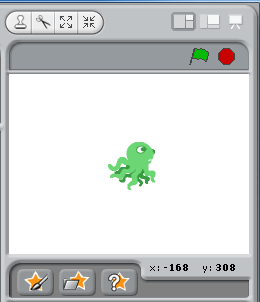 Tutorial 4-
Moving Animation:
What does this effect do?
This effect makes the character move
What do each of the codes represent?
The When () Key Pressed block is a Control block and Hat block. When scripts wear this block wil activate when the green flag has been clicked will activate other scripts.
The Forever block is a control block and a C block. It is held in a loop, which never ends unless the stop sign is activated.
The Switch to Costume () block, is a Looks block and Stack block which changes its sprite's costume to a specified one.
The Wait () Secs (block), is a Control Block and a Stack Block, that pauses the script for a specified amount of time (0.3 seconds)
The Move () Steps (block) is a Motion Block and a Stack Block which moves its sprite forward the specificed amount of steps (10).
The If On Edge, Bounce (block) is a Motion Block and a Stack Block which checks to see if the sprite is touching the screen and if it is, the sprite will point that mirrors its direction from where its coming.
Scratch Tutorials
Tutorial 3-

Key Moves:
What does this effect do?
This effect makes the cat changes its position that it faces.
What do each of the codes represent?
The When () Key Pressed block is a Control block and Hat block and in this tutorial when the up arrow, down arrow, left arrow or right arrow is pressed, the block will activate.
 The Point in Direction () block is a Motion block and a Stack block and it points its sprite in the direction given. In this one, it changes from 0 to 180 to -90 to 90.
The Move () Steps (block) is a Motion Block and a Stack Block which moves its sprite forward the specificed amount of steps (10).

Key Moves:
What does this effect do?
This effect makes the cat changes its position that it faces.
What do each of the codes represent?
The When () Key Pressed block is a Control block and Hat block and in this tutorial when the up arrow, down arrow, left arrow or right arrow is pressed, the block will activate.
The Point in Direction () block is a Motion block and a Stack block and it points its sprite in the direction given. In this one, it changes from 0 to 180 to -90 to 90.The Move () Steps (block) is a Motion Block and a Stack Block which moves its sprite forward the specificed amount of steps (10).

Thursday, 1 November 2012
Scratch Tutorials
Tutorial
2-
 Dance Twist:
 This effect makes the person shake their hips with sound.
What do each of the codes represent?
The When () Key Pressed block is a Control block and Hat block and in this case when w is pressed, the block will activate.
The Play () Sound block is a Sound block and a Stack Block which will play the set sound (Nicki Minaj, Starships).
 The Set () Effect to () block is a Looks block and Stack block and will set the specified effect (whirl in this instance) to the specified amount (50)
The Wait () Secs block is a Control block and a Stack block that pauses its script for a period of time (1 second).

Tuesday, 30 October 2012
Scratch Tutorials
 Tutorial 1-
Change Colour Effect:
What does this effect do?
This effect changes the colour of the sprite.
What do each of the codes represent?
The When () Key Pressed block is a control block and a hat block and scripts that wear this will activate when the specific key is pressed (in this case, w). In this tutorial, the space bar activates how the butterfly changes it colour.

The set () Effect () block is a looks block and a stack block. The block sets the specified effect on its sprite to the specified amount. In this case the effect is colour. The number 25, states the amount of change in colour. If the number is higher, their will be a greater change in colour, but if it is a smaller number, it will only change by a little amount.
Thursday, 18 October 2012
Flowcharts
1. For each of the flowcharts
below describe in words what you think they will do.
It shows if the temperature is less than or greater than 32 degrees. The other one is a flowchart of a one second response to a switch.
2. Convert one of the
algorithms you have created in the previous task into a flowchart, e.g. opening a door, moving through a traffic
light.

Tuesday, 16 October 2012
Computer Algorithims
“Computers
never do what you want them to do,
they only do
what you tell them to!”
1.
Algorithms
2.
Pseudocode
3.
Machine Language
4.
High Level Computer Language
5.
Flowchart
6.
Sequence
7.
Selection
8.
Repetition
Then with the aid of class discussions,
write an algorithm for the following processes; In your algorithm write each step of the process on a new line. Remember not to assume the computer knows anything.
Turnn left 90 degrees
Walk 5 steps straight
Turn 90 degrees left
Walk two steps forward
Grab the hand with your right arm
Turn the handle clockwise
Pull the door towards you
2. Negotiating traffic lights as you drive down a street.
Is the light green?
If Yes, continue driving, if No go to next question
Is the light yellow?
If Yes, slow down, if No go to next question
Is the light red?
If Yes, stop
Saturday, 22 September 2012
URL's and QR codes of websites
Arusha's URL and QR
https://sites.google.com/site/arushasamazingartworks10/home?pli=1

Magdalena's URL and QR code
https://sites.google.com/site/magdalenasmagnificentartworks/

Websites
The two art students I made websites for were Arusha Bhowmink and Magdalena Wozniak. To make these sites I used Mr Lennon's provided template, 'Art Thumbnails'. To resize the images I used Microsoft Office Picture Manager. The size of the original images was:
Arusha- Around 4272 x 2848 pixels
Magdalena- 4272 x 2848 pixels
I resized them to small thumbnails, which could link to the original images. The sizes that suited my images was:
Arusha- Around 256 x 171 pixels
Magdalena- Around 236 x 157 pixels
Tuesday, 21 August 2012
Evaluationg Web Design
1.
Read through the article and write
a one line summary of each principle
in your blog.
1. Don't make users think: Your website should be obvious, simple and self explanatory with a clear structed design.
2. Don't squander users' patience: Your website should not be long and boring so that the reader can comfortably look through information, without getting let down and never coming back on.
3. Manage to focus user' attention: Use creatve edges, patterns and motions so that the reader stays interested.
4. Strive for feature exposure: Let your user clearly see what functions are avaliable and that the content is comfortable.
5. Make use of effective writing: Use short consise phrases, a scannable layout and a plain objective language to get straight to the point.
6. Strive for Simplicty: Use the Keep it Simple Principle when creating a website, as users are more interested in the content than the design.
7. Don't be afraid of the white space: White space helps to reduce the cognitive load for the visitor and makes it easier to scan, read and analyse information.
8. Communicate effectivey with a 'visible language': The three fundamental principles involved in the use of 'visible language' are organise, econimise and communicate.
9. Conventions are our friends: Conventions are useful as they reduce the learning curve and allows you to gain the trust, confidence and reliablilty and prove your crediability to the user.
10. Test early, Test often: Always test your site as you make it.
2.
See if you can locate an example of
two poorly designed web sites. Provide the link in your blog and describe why
the site has poor design
1. http://www.dokimos.org/ajff/ The background is way too bright.
2. http://www.arngren.net/ The Website is too crowded
1. http://www.dokimos.org/ajff/ The background is way too bright.
2. http://www.arngren.net/ The Website is too crowded
Thursday, 16 August 2012
QR codes
1.
What is a QR code?
QR or Quick Response Codes are a type of two-dimensional barcode that can be read using smartphones and dedicated QR reading devices.
2.
What can they be used for?
They can link directly to text, emails, websites, phone numbers and more just by the scanning of a barcode.
3.
Provide some examples of how
they are being used in marketing and education.Stores can use them to market their products and link the QR code to a facebook page or twitter. You can have an airline boarding pass digitally, instead of a paper one that you always have to carry around. Also, they can be used to show a map, for example our school put up posters around the school, so that parents who came could get a digital map.
4.
What hardware (Device) and
software (apps or programs) do you need to scan a QR code?
Smart Phones such as the Iphone can be used to access apps such as QR App or QR Drois. Or, you can simply use any QR barcode scanner.
5.
What hardware and software do
you need to create a Qr code?
You need a laptop or computer that has access to internet connection. A good website link such as http://www.qrstuff.com/, will help you make an QR. Next you just need to insert it to a website or poster.etc and it can be scanned easily.
6.
Create a QR code. This links to the official Gossip Girl website.

Monday, 13 August 2012
Phone Advice
Imagine you work as an assistant in a
mobile phone shop. A mother comes into your shop wanting to buy a smart phone
for her daughter. Her mother is not very “tech savvy” and needs some concepts
and features explained. Below are some of her questions, do your best to
provide meaningful answers in simple terms;
1.
“My daughter insists that her
phone be Wifi capable? What does this mean? Why does she need it?”
Wifi capable means that she wants her phone to be able to connect to Wifi Networks, that may be present depending on the location. This will allow her to use the internet to do a variety of things, ranging from social networking (facebook, twitter, tumblr.etc) to using an app.
2.
The mother says “She wants the
camera in the phone to be at least 5 Meg thingys, what does this mean? Does she
need it?”
She wants a camera that is atleast 5 megapixels, which means 5 million pixels per image. This will take pictures and videos that will be of a higher quality and resoultion and much clearer.
3.
“My daughter wants a phone with
a capacitive touch screen. They seem more expensive, what advantages do they
offer over other types of touch screens?”
Capacitive touch screen consists of an Insulator coated with a transparent conducter, and although they are more expensive, they have various advantages:
- A special feature of capacitive touch screen is that it is only responsive to the human touch. In case of any outer touch it does not response.
- Can't be affected by dirt, moisture or grease.
- It facilitates to clean the screen with the help of fabric.
- It gives comparatively better image as compared to resistive touch screen.
-Capacitive touch screen gives good response this is because they are acute observer of the slight touch.
- Even in sunlight the resoultion is good.
4.
“Are all phone as smart as one
another? What is the smartest phone at the moment and why?”
No, it all depends on the gadgets and work involved in the phone. The smartest phone at the moment is the Iphone 4S because it has a dual core A5 chip, a 8 megapixel camera, HD video recording, iOS, iCloud, Retina display, Facetime, Airplay, Airprint, very fast connecting speed, built in apps and many many more features.
5.
“She wants to take lots of
video and photos. How do I know which phone can store the most videos and
photos?”
The
phone that can store the most video and photos would be one with a large amount
of memory, but also if you find a good phone with a low amount of memory there
is always the option of an SD Card which you can place into the phone like a USB
into a computer, and it can be moved to any other phone with an SD Card slot so
if you change phones, you dont have to reload everything, just click and
go.
6.
“She says she wants to be able
to buys apps. What are apps? What sort of useful apps cold she access? What
types of phones can buy and use apps?”
APP is
an abbreviation for application, apps are basically activities, games, helpful
information and links to websites that keep people up to date and allow people
access to everything they need. Most smartphones these days can buy and use apps. Examples include HTC, Iphone, Samsung.etc
Tuesday, 24 July 2012
CPU
1. What
is the function of the CPU?
A central processing unit controls the functions of most electronic products. This component accepts input data, processes information and sends it to whatever component that is in charge of executing the action. CPUs are also known as microprocessors and are at the center of any computer system. Although CPUs are most often thought of as a computer chip, they can also be found in many other electronic devices including cell phones, handheld devices, microwaves, television sets and toys.
2. What
was the name of the first CPU?
In November, 1971, the first CPU was introduced by Intel.
3.
Referring to the graph on page 2 of
the article, describe how the speed of CPU’s has changed.
4. What
does MIPS measure?
A unit of computing speed equivalent to a million instructions per second.
5. Research
(Google it) what is a dual core processor, what is multitasking and how do the
two work together.
A dual core processor is a CPU with two separate cores on the same die,
each with its own cache. It's the equivalent of getting two microprocessors in one.
A dual core processor is different from a multi-processor system. In the latter there are two separate CPUs with their own resources. In the former, resources are shared and the cores reside on the same chip. A multi-processor system is faster than a system with a dual core processor, while a dual core system is faster than a single-core system, all else being equal.
A dual core processor is different from a multi-processor system. In the latter there are two separate CPUs with their own resources. In the former, resources are shared and the cores reside on the same chip. A multi-processor system is faster than a system with a dual core processor, while a dual core system is faster than a single-core system, all else being equal.
Multitasking:
The simultaneous execution of multiple tasks (programs) under the control
of an interrupt-driven operating system; The practice or capability of handling
more than one task at the same time.
The World Of Multimedia
1.
Where do you commonly use
multimedia in your daily life, list as many examples as you can.
Computers, Laptops, Ipods, Phones, Bluray Players, DVD Players, TV's, Mp3 players, Internet Connection, Xbox Connect, Wii Console.
2.
What
multimedia device or service would you find it hardest to be without? Discuss.
I believe that the multimedia device I would find it hardest to be without would be my Ipod. I always listen to music, watch Youtube, read books and play games on my Ipod Touch.
3.
The video
on future directions (first video) has already to some extent come true. What
multimedia technologies displayed in this video are already commonly used?
ADVANTAGES
- They are very easy to use, making our lives simpler.
- The cost of these devices will become less as they will not be highly values as time goes by.
- It will lessen the impact and strain to our eyesight. We can use it at a furthur distance than computers and laptops today.
- Such devices will not require you to touch or move anything to operate it. We will be able to give orders by talking, allowing us to multitask.
- They will be able to alert us with any changes on our calender, so that we will not miss anything important like meetings or function, due to a change in time or time.
DISADVANTAGES
- Hackers can easily access every aspect of your life, since your computer will have so much personal information.
Subscribe to:
Posts (Atom)